How to Mint an NFT (Part 2/3 of NFT Tutorial Series)
“Minting an NFT” is the act of publishing a unique instance of your ERC-721 token on the blockchain. Using our smart contract from Part 1 of this NFT tutorial series, let’s flex our Web3 skills and mint an NFT. At the end of this tutorial, you’ll be able to mint as many NFTs as your heart (and wallet) desires!
Let’s get started!
Step 1: Check your setup
If you followed the first tutorial on creating your NFT smart contract, you already have everything you need: a Hardhat 3 project with the Ethers plugin (opens in a new tab) and ethers.js (opens in a new tab), a library used to make creating requests to the Ethereum blockchain easier. We’ll write our minting code as a Hardhat script, so it reuses the Sepolia network settings and the API_URL and PRIVATE_KEY values from Part 1 — there’s nothing new to install.
Step 2: Create a mint-nft.js file
Inside your scripts directory, create a mint-nft.js file and add the following lines of code:
import { network } from "hardhat"

const { ethers } = await network.create()
As in our deploy script, network.create() connects to the network you choose with --network when you run the script, and gives us an ethers object for it.
Step 3: Grab your contract ABI
Our contract ABI (Application Binary Interface) is the interface to interact with our smart contract. You can learn more about . Hardhat automatically generates an ABI for us when it compiles the contract and saves it in the artifacts/contracts/MyNFT.sol/MyNFT.json file. The Hardhat Ethers plugin reads it from there for us when we create our contract instance in step 5, so we don't need to load it ourselves.
If you want to see the ABI you can print it to your console. From your project's root directory, run:
node -p "JSON.stringify(require('./artifacts/contracts/MyNFT.sol/MyNFT.json').abi)"
Step 4: Configure the metadata for your NFT using IPFS
If you remember from our tutorial in Part 1, our mintNFT smart contract function takes in a tokenURI parameter that should resolve to a JSON document describing the NFT's metadata— which is really what brings the NFT to life, allowing it to have configurable properties, such as a name, description, image, and other attributes.
Interplanetary File System (IPFS) is a decentralized protocol and peer-to-peer network for storing and sharing data in a distributed file system.
We will use Pinata, a convenient IPFS API and toolkit, to store our NFT asset and metadata to ensure our NFT is truly decentralized. If you don’t have a Pinata account, sign up for a free account here (opens in a new tab) and complete the steps to verify your email.
Once you’ve created an account:
-
Navigate to the Files page (opens in a new tab) and click the "Add" button in the top right corner of the page.
-
Upload an image to Pinata — this will be the image asset for your NFT. Feel free to name the asset whatever you wish. Make sure you upload it to public IPFS: files on Private IPFS (opens in a new tab) can't be fetched by wallets and marketplaces that display your NFT.
-
After you upload, you'll see the file listed on the Files page together with its CID (content identifier). Copy the CID. You can view your upload at:
https://gateway.pinata.cloud/ipfs/<CID>, or through the dedicated gateway listed under "Gateways" in the Pinata sidebar. You can find the image we used on IPFS here (opens in a new tab), for example.
Now, we’re going to want to upload one more document to Pinata. But before we do that, we need to create it!
In your root directory, make a new file called nft-metadata.json and add the following json code:
{
  "attributes": [
    {
      "trait_type": "Breed",
      "value": "Maltipoo"
    },
    {
      "trait_type": "Eye color",
      "value": "Mocha"
    }
  ],
  "description": "The world's most adorable and sensitive pup.",
  "image": "ipfs://QmWmvTJmJU3pozR9ZHFmQC2DNDwi2XJtf3QGyYiiagFSWb",
  "name": "Ramses"
}
Feel free to change the data in the json. You can remove or add to the attributes section. Most importantly, make sure the image field points to the location of your IPFS image, in the form ipfs://<image-CID> — otherwise, your NFT will include a photo of a (very cute!) dog.
Once you’re done editing the JSON file, save it and upload it to Pinata, following the same steps we did for uploading the image. Copy the CID of nft-metadata.json too; we'll need it in step 9.
Step 5: Create an instance of your contract
Now, to interact with our contract, we need to create an instance of it in our code. To do so we'll need our contract address, which our deploy script printed in Part 1. You can also find it on Etherscan (opens in a new tab) or Blockscout (opens in a new tab) by looking up the address you used to deploy the contract.

In the above example, our contract address is 0x5a738a5c5fe46a1fd5ee7dd7e38f722e2aef7778.
Next we will use the Hardhat Ethers plugin's getContractAt method to create our contract using its name (which tells it which ABI to use) and its address. In your mint-nft.js file, add the following, replacing the address with your own:
const contractAddress = "0x5a738a5c5fe46a1fd5ee7dd7e38f722e2aef7778"
const nftContract = await ethers.getContractAt("MyNFT", contractAddress)
Step 6: Check the .env file
Every transaction we send has to be signed with your account's private key. If you completed part 1 of the tutorial, our .env file should already look like this:
API_URL="https://eth-sepolia.g.alchemy.com/v2/your-api-key"
PRIVATE_KEY="your-metamask-private-key"
There's no need to add your public address: ethers works it out from the private key.
Step 7: Create your transaction
First, let’s define a function named mintNFT(tokenURI) and create our transaction by doing the following:
-
Get the account we send the transaction from.
ethers.getSigners()returns the accounts configured for the network, which on Sepolia is the account whose private key is in.env. SincemintNFTisonlyOwner, this must be the same account that deployed the contract. -
Call the
mintNFTfunction on our contract instance, with our own address as the recipient and the metadata URI. This is the computation we wish to perform in this transaction — which in this case is minting an NFT.
You don't need to work out the nonce (the number of transactions sent from your address, which prevents replay attacks), the gas limit, or the fees yourself: ethers fetches or estimates them before sending the transaction.
Your mint-nft.js file should look like this now:
import { network } from "hardhat"

const { ethers } = await network.create()

const contractAddress = "0x5a738a5c5fe46a1fd5ee7dd7e38f722e2aef7778"
const nftContract = await ethers.getContractAt("MyNFT", contractAddress)

async function mintNFT(tokenURI) {
  const [signer] = await ethers.getSigners()

  // Send the transaction. ethers fills in the nonce, gas limit and fees for us.
  const tx = await nftContract.mintNFT(signer.address, tokenURI)
}
Step 8: Sign the transaction
Because the network is configured with our private key, ethers signs the transaction with it automatically before sending it.
Calling mintNFT returns once the transaction has been sent, and gives us the transaction hash, which we can use to make sure our transaction was mined and didn't get dropped by the network. tx.wait() then waits until the transaction is included in a block. We've also added some error checking so we know if our transaction successfully went through.
import { network } from "hardhat"

const { ethers } = await network.create()

const contractAddress = "0x5a738a5c5fe46a1fd5ee7dd7e38f722e2aef7778"
const nftContract = await ethers.getContractAt("MyNFT", contractAddress)

async function mintNFT(tokenURI) {
  const [signer] = await ethers.getSigners()

  try {
    // Send the transaction. ethers fills in the nonce, gas limit and fees for us.
    const tx = await nftContract.mintNFT(signer.address, tokenURI)
    console.log("The hash of your transaction is:", tx.hash)

    // Wait for the transaction to be included in a block
    const receipt = await tx.wait()
    console.log("Your NFT was minted in block", receipt.blockNumber)
  } catch (err) {
    console.log("Something went wrong when submitting your transaction:", err)
  }
}
Step 9: Call mintNFT and run mint-nft.js
Remember the nft-metadata.json you uploaded to Pinata? Get its CID from Pinata and pass ipfs://<metadata-CID> as the parameter to the function mintNFT. Wallets and marketplaces resolve ipfs:// URIs through an IPFS gateway of their choice, so your NFT doesn't depend on any single gateway.
Double check that the CID you copied links to your nft-metadata.json by loading
https://gateway.pinata.cloud/ipfs/<metadata-CID>into a separate window. The page should look similar to the screenshot below:
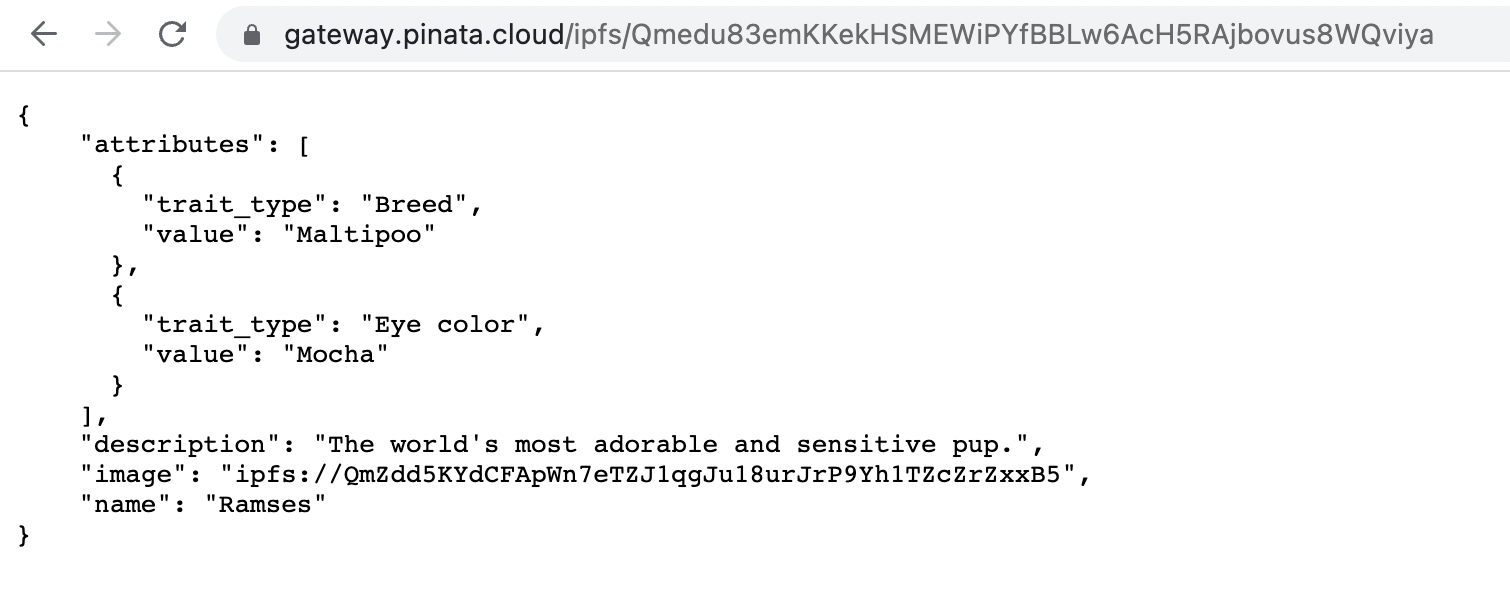 Your page should display the json metadata
Altogether, your code should look something like this:
import { network } from "hardhat"

const { ethers } = await network.create()

const contractAddress = "0x5a738a5c5fe46a1fd5ee7dd7e38f722e2aef7778"
const nftContract = await ethers.getContractAt("MyNFT", contractAddress)

async function mintNFT(tokenURI) {
  const [signer] = await ethers.getSigners()

  try {
    // Send the transaction. ethers fills in the nonce, gas limit and fees for us.
    const tx = await nftContract.mintNFT(signer.address, tokenURI)
    console.log("The hash of your transaction is:", tx.hash)

    // Wait for the transaction to be included in a block
    const receipt = await tx.wait()
    console.log("Your NFT was minted in block", receipt.blockNumber)
  } catch (err) {
    console.log("Something went wrong when submitting your transaction:", err)
  }
}

await mintNFT("ipfs://QmYueiuRNmL4MiA2GwtVMm6ZagknXnSpQnB3z2gWbz36hP")
Now, run the script against Sepolia to mint your NFT:
npx hardhat run scripts/mint-nft.js --network sepolia
After a few seconds, you should see a response like this in your terminal:
The hash of your transaction is: 0x301791fdf492001fcd9d5e5b12f3aa1bbbea9a88ed24993a8ab2cdae2d06e1e8
Your NFT was minted in block <block number>
To see the details of your transaction, search for its hash on Etherscan (opens in a new tab) or Blockscout (opens in a new tab).
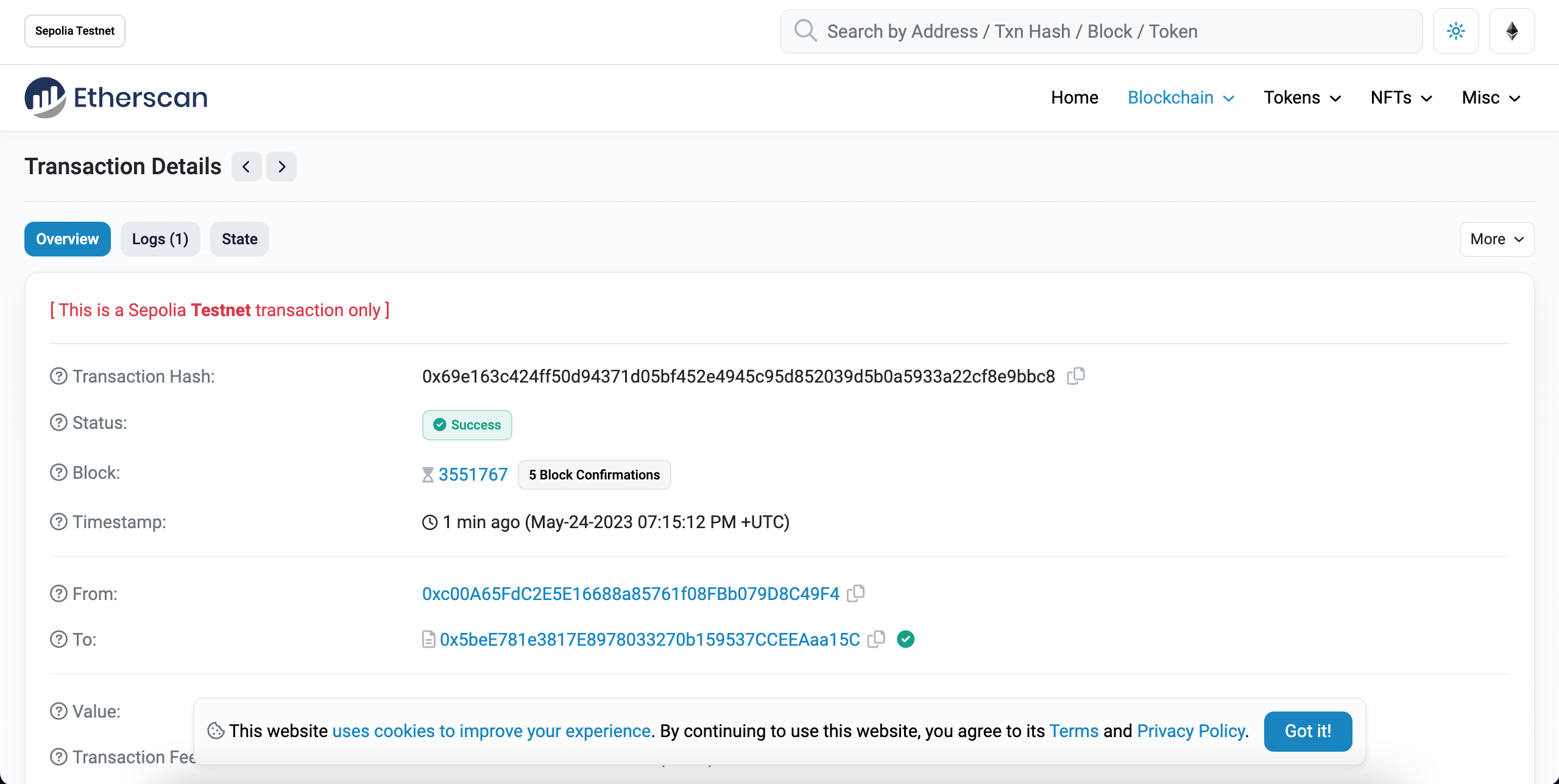 View your NFT transaction hash on Etherscan
And that’s it! You’ve now deployed AND minted with a NFT on the Ethereum blockchain
Using the mint-nft.js you can mint as many NFTs as your heart (and wallet) desires! Just be sure to pass in a new tokenURI describing the NFT's metadata (otherwise, you'll just end up making a bunch of identical ones with different IDs).
Presumably, you’d like to be able to show off your NFT in your wallet — so be sure to check out Part 3: How to View Your NFT in Your Wallet!