Hello World Smart Contract for Beginners
If you are new to blockchain development and don’t know where to start, or if you just want to understand how to deploy and interact with smart contracts, this guide is for you. We will walk through creating and deploying a simple smart contract on the Sepolia test network using a virtual wallet MetaMask (opens in a new tab), Solidity (opens in a new tab), Hardhat (opens in a new tab), and Alchemy (opens in a new tab) (don’t worry if you don’t understand what any of this means yet, we will explain it).
Once your contract is deployed, you can build a user interface for it.
If you have questions at any point feel free to reach out in the Alchemy Discord (opens in a new tab)!
Step 1: Connect to the Ethereum network
There are many ways to make requests to the Ethereum chain. For simplicity, we’ll use a free account on Alchemy, a blockchain developer platform and API that allows us to communicate with the Ethereum chain without having to run our own nodes. The platform also has developer tools for monitoring and analytics that we’ll take advantage of in this tutorial to understand what’s going on under the hood in our smart contract deployment. If you don’t already have an Alchemy account, you can sign up for free here (opens in a new tab).
Step 2: Create your app (and API key)
Once you’ve created an Alchemy account, you can generate an API key by creating an app. This will allow us to make requests to the Sepolia test network. If you’re not familiar with testnets, check out this page.
- Navigate to the "Create new app" page in your Alchemy Dashboard by selecting "Select an app" in the nav bar and clicking "Create new app"
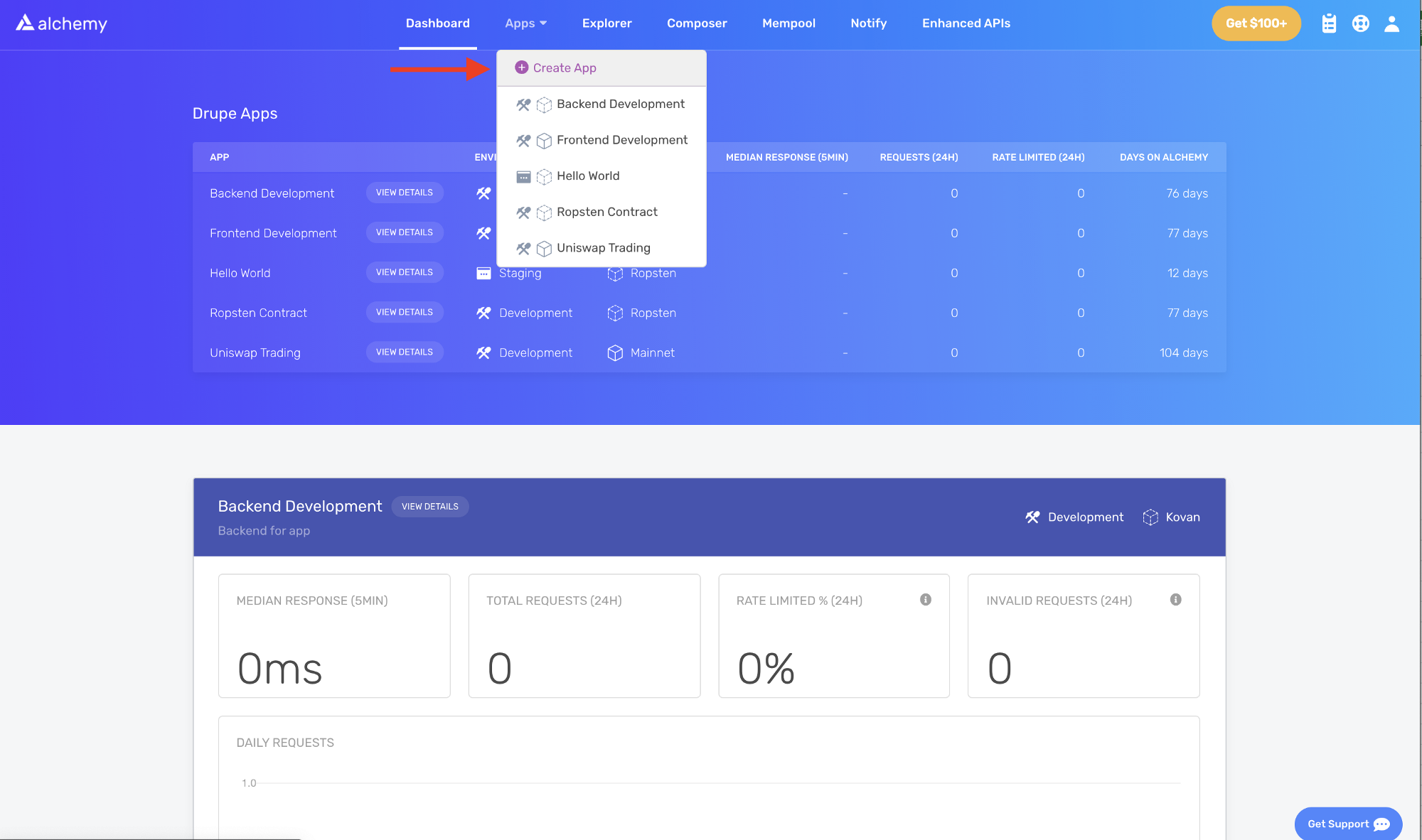
- Name your app “Hello World”, offer a short description, and choose a use case, e.g., "Infra & Tooling." Next, search for "Ethereum" and select the network.
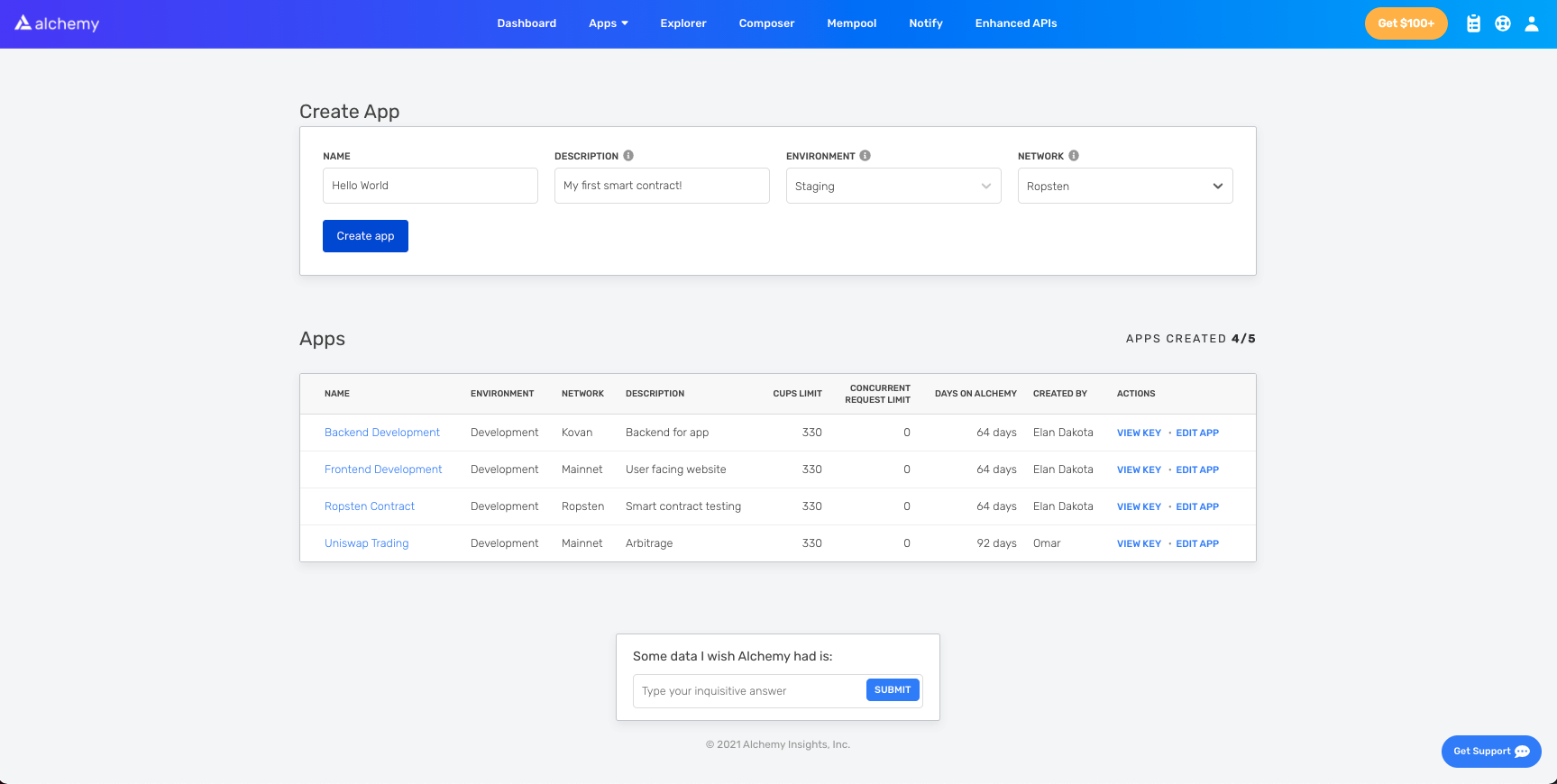
- Click "Next" to proceed, then “Create app” and that’s it! Your app should appear in the nav bar dropdown menu, with an API Key available to copy.
Step 3: Create an Ethereum account (address)
We need an Ethereum account to send and receive transactions. For this tutorial, we’ll use MetaMask, a virtual wallet in the browser used to manage your Ethereum account address. More on transactions.
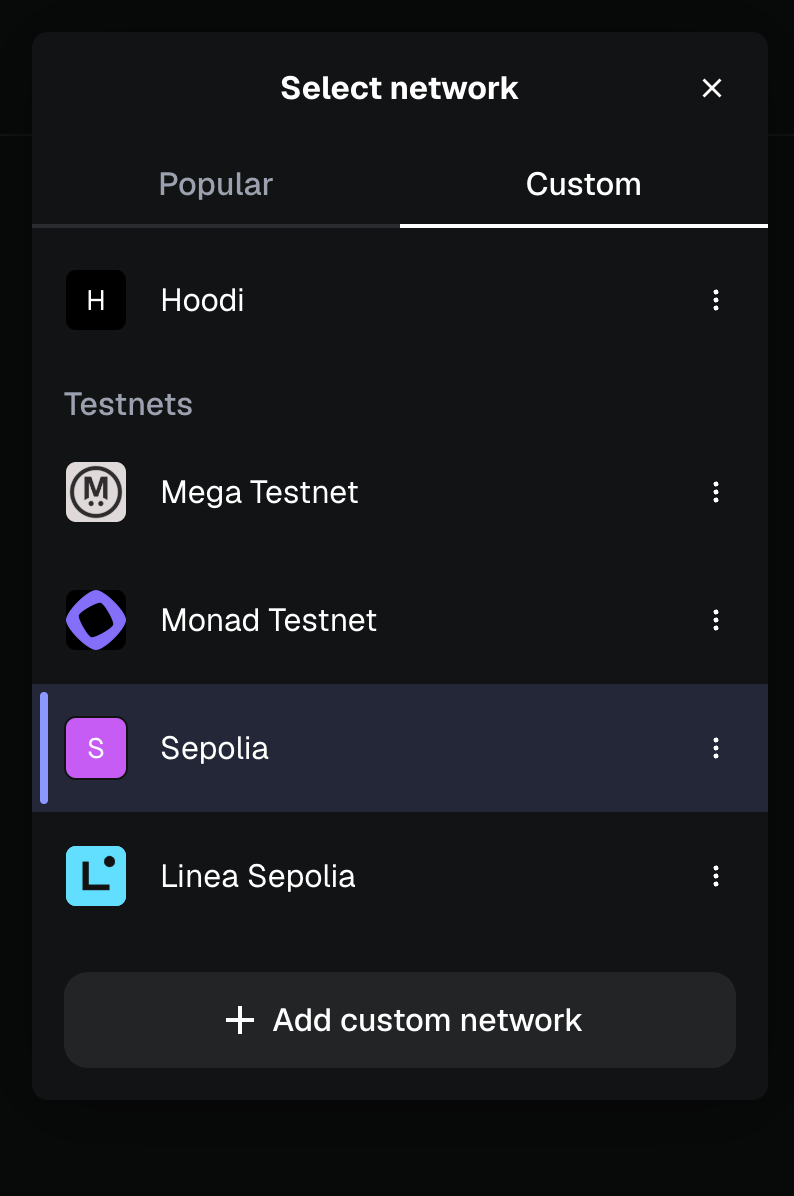
You can download MetaMask and create an Ethereum account for free here (opens in a new tab). When you are creating an account, or if you already have an account, make sure to switch over to the "Sepolia" test network using the network dropdown menu (so that we’re not dealing with real money).
If you do not see Sepolia listed, open the menu in the top right corner, select "Networks", and toggle "Show test networks" on at the bottom of the network list (see MetaMask's guide to viewing testnets (opens in a new tab)). Then select "Sepolia" in the network selection menu.
Step 4: Add ether from a faucet
In order to deploy our smart contract to the test network, we’ll need some fake Eth. To get Sepolia ETH you can go to the Sepolia network details to view a list of various faucets. If one doesn't work, try another as they can sometimes run dry. Some faucets have eligibility rules; for example, Alchemy's Sepolia faucet requires the receiving address to hold at least 0.001 ETH on Ethereum Mainnet. It may take some time to receive your fake ETH due to network traffic. You should see ETH in your Metamask account soon after!
Step 5: Check your Balance
To double check our balance is there, let’s make an eth_getBalance request using Alchemy’s composer tool (opens in a new tab). This will return the amount of ETH in our wallet. After you input your MetaMask account address and click “Send Request”, you should see a response like this:
{ "jsonrpc": "2.0", "id": 0, "result": "0x2B5E3AF16B1880000" }
NOTE: This result is in wei not ETH. Wei is used as the smallest denomination of ether. The conversion from wei to ETH is: 1 eth = 1018 wei. So if we convert 0x2B5E3AF16B1880000 to decimal we get 5*10¹⁸ which equals 5 ETH.
Phew! Our fake money is all there .
Step 6: Initialize our project
First, we’ll need to create a folder for our project. Navigate to your command line and type:
mkdir hello-world
cd hello-world
Now that we’re inside our project folder, we’ll use npm init to initialize the project. If you don’t already have npm installed, follow the Node.js installation instructions (opens in a new tab) (we’ll need Node.js and npm for this tutorial).
npm init
It doesn’t really matter how you answer the installation questions, here is how we did it for reference:
package name: (hello-world)
version: (1.0.0)
description: hello world smart contract
entry point: (index.js)
test command:
git repository:
keywords:
author:
license: (ISC)
About to write to /Users/.../.../.../hello-world/package.json:

{
  "name": "hello-world",
  "version": "1.0.0",
  "description": "hello world smart contract",
  "main": "index.js",
  "scripts": {
     "test": "echo \"Error: no test specified\" && exit 1"
  },
  "author": "",
  "license": "ISC"
}
Approve the package.json. Hardhat 3, which we install next, only supports ES module projects, so mark the project as one:
npm pkg set type=module
And we’re good to go!
Step 7: Download Hardhat (opens in a new tab)
Hardhat is a development environment to compile, deploy, test, and debug your Ethereum software. It helps developers when building smart contracts and dapps locally before deploying to the live chain.
Hardhat 3 requires Node.js v22.13.0 or later. Inside our hello-world project run:
npm install --save-dev hardhat
Check out this page for more details on installation instructions (opens in a new tab).
Step 8: Create Hardhat project
Running npx hardhat --init would generate a complete sample project, but for this tutorial we’ll set things up by hand so you can see every piece. In the root of your project folder, create a file called hardhat.config.js with the following contents:
import { defineConfig } from "hardhat/config"

export default defineConfig({
  solidity: "0.8.34",
})
This is where we’ll specify all of the set up for our project (on step 13). For now, it just tells Hardhat which version of the Solidity compiler to use.
Step 9: Add project folders
To keep our project organized we’ll create two new folders. Navigate to the root directory of your project in your command line and type:
mkdir contracts
mkdir scripts
contracts/is where we’ll keep our hello world smart contract code filescripts/is where we’ll keep scripts to deploy and interact with our contract
Step 10: Write our contract
You might be asking yourself, when the heck are we going to write code?? Well, here we are, on step 10.
Open up the hello-world project in your favorite editor (we like VSCode (opens in a new tab)). Smart contracts are written in a language called Solidity which is what we will use to write our HelloWorld.sol smart contract.
- Navigate to the “contracts” folder and create a new file called HelloWorld.sol
- Below is a sample Hello World smart contract from the Ethereum Foundation that we will be using for this tutorial. Copy and paste in the contents below into your HelloWorld.sol file, and be sure to read the comments to understand what this contract does:
// SPDX-License-Identifier: MIT
// Specifies the version of Solidity, using semantic versioning.
// Learn more: https://docs.soliditylang.org/en/latest/layout-of-source-files.html#pragma
pragma solidity ^0.8.24;

// Defines a contract named `HelloWorld`.
// A contract is a collection of functions and data (its state). Once deployed, a contract resides at a specific address on the Ethereum blockchain. Learn more: https://docs.soliditylang.org/en/latest/structure-of-a-contract.html
contract HelloWorld {

   // Declares a state variable `message` of type `string`.
   // State variables are variables whose values are permanently stored in contract storage. The keyword `public` makes variables accessible from outside a contract and creates a function that other contracts or clients can call to access the value.
   string public message;

   // Similar to many class-based object-oriented languages, a constructor is a special function that is only executed upon contract creation.
   // Constructors are used to initialize the contract's data. Learn more: https://docs.soliditylang.org/en/latest/contracts.html#constructors
   constructor(string memory initMessage) {

      // Accepts a string argument `initMessage` and sets the value into the contract's `message` storage variable).
      message = initMessage;
   }

   // A public function that accepts a string argument and updates the `message` storage variable.
   function update(string memory newMessage) public {
      message = newMessage;
   }
}
This is a super simple smart contract that stores a message upon creation and can be updated by calling the update function.
Step 11: Connect MetaMask & Alchemy to your project
We’ve created a MetaMask wallet, Alchemy account, and written our smart contract, now it’s time to connect the three.
Every transaction sent from your virtual wallet requires a signature using your unique private key. To provide our program with this permission, we can safely store our private key (and Alchemy API key) in an environment file.
To learn more about sending transactions, check out the transactions documentation.
Create a .env file in the root directory of our project, and add your MetaMask private key and HTTP Alchemy API URL to it.
- Follow these instructions (opens in a new tab) to export your private key
- See below to get HTTP Alchemy API URL

Copy Alchemy API URL
Your .env should look like this:
API_URL="https://eth-sepolia.g.alchemy.com/v2/your-api-key"
PRIVATE_KEY="your-metamask-private-key"
To actually connect these to our code, we’ll reference these variables in our hardhat.config.js file on step 13. Node.js can read .env files on its own, so there's no extra package to install.
.env! Please make sure never to share or expose your .env file with anyone, as you are compromising your secrets in doing so. If you are using version control, add your .env to a gitignore file.Step 12: Install Ethers.js
Ethers.js is a library that makes it easier to interact and make requests to Ethereum by wrapping standard JSON-RPC methods with more user friendly methods.
Hardhat makes it super easy to integrate Plugins (opens in a new tab) for additional tooling and extended functionality. We’ll be taking advantage of the Ethers plugin (opens in a new tab) for contract deployment (Ethers.js (opens in a new tab) has some super clean contract deployment methods).
In your project directory type:
npm install --save-dev @nomicfoundation/hardhat-ethers ethers
We’ll also add the plugin to our hardhat.config.js in the next step.
Step 13: Update hardhat.config.js
We’ve added several dependencies and plugins so far, now we need to update hardhat.config.js so that our project knows about all of them.
Update your hardhat.config.js to look like this:
import { existsSync } from "node:fs"
import hardhatEthers from "@nomicfoundation/hardhat-ethers"
import { configVariable, defineConfig } from "hardhat/config"

// Load API_URL and PRIVATE_KEY from the .env file into process.env, if it exists
if (existsSync(".env")) process.loadEnvFile()

export default defineConfig({
  plugins: [hardhatEthers],
  solidity: "0.8.34",
  networks: {
    sepolia: {
      type: "http",
      url: configVariable("API_URL"),
      accounts: [configVariable("PRIVATE_KEY")],
    },
  },
})
configVariable tells Hardhat to read each value from an environment variable only when it's needed, so commands like compile work even before the values are set. If you'd rather not keep your private key in a plain text file, Hardhat can also read configuration variables from an encrypted keystore (opens in a new tab).
Step 14: Compile our contract
To make sure everything is working so far, let’s compile our contract. The compile task is one of the built-in hardhat tasks.
From the command line run:
npx hardhat compile
The first time you compile, Hardhat downloads the Solidity compiler. You should then see something like Compiled 1 Solidity file with solc 0.8.34. If not, you can always message in the Alchemy Discord (opens in a new tab).
Step 15: Write our deploy script
Now that our contract is written and our configuration file is good to go, it’s time to write our contract deploy script.
Navigate to the scripts/ folder and create a new file called deploy.js , adding the following contents to it:
import { network } from "hardhat"

const { ethers } = await network.create()

const HelloWorld = await ethers.getContractFactory("HelloWorld")

// Start deployment, returning a promise that resolves to a contract object
const hello_world = await HelloWorld.deploy("Hello World!")
await hello_world.waitForDeployment()
console.log("Contract deployed to address:", await hello_world.getAddress())
Let’s go through what each of these lines of code does.
const { ethers } = await network.create()
In Hardhat 3, a script opens a connection to a network explicitly. network.create() connects to the network you choose with the --network option when you run the script, and the hardhat-ethers plugin adds an ethers object to that connection.
const HelloWorld = await ethers.getContractFactory("HelloWorld")
A ContractFactory in ethers.js is an abstraction used to deploy new smart contracts, so HelloWorld here is a factory for instances of our hello world contract. When using the hardhat-ethers plugin ContractFactory and Contract instances are connected to the first signer by default.
const hello_world = await HelloWorld.deploy("Hello World!")
Calling deploy() on a ContractFactory will start the deployment, and return a Promise that resolves to a Contract. This is the object that has a method for each of our smart contract functions. The arguments you pass to deploy() go to the contract's constructor, here the initial message.
waitForDeployment() waits until the deployment transaction is included in a block, and getAddress() returns the address of the new contract. See the ethers.js contract documentation (opens in a new tab) for more details.
Step 16: Deploy our contract
We’re finally ready to deploy our smart contract! Navigate to the command line and run:
npx hardhat run scripts/deploy.js --network sepolia
You should then see something like:
Contract deployed to address: 0x6cd7d44516a20882cEa2DE9f205bF401c0d23570
If we go to the Sepolia etherscan (opens in a new tab) and search for our contract address we should able to see that it has been deployed successfully. The transaction will look something like this:
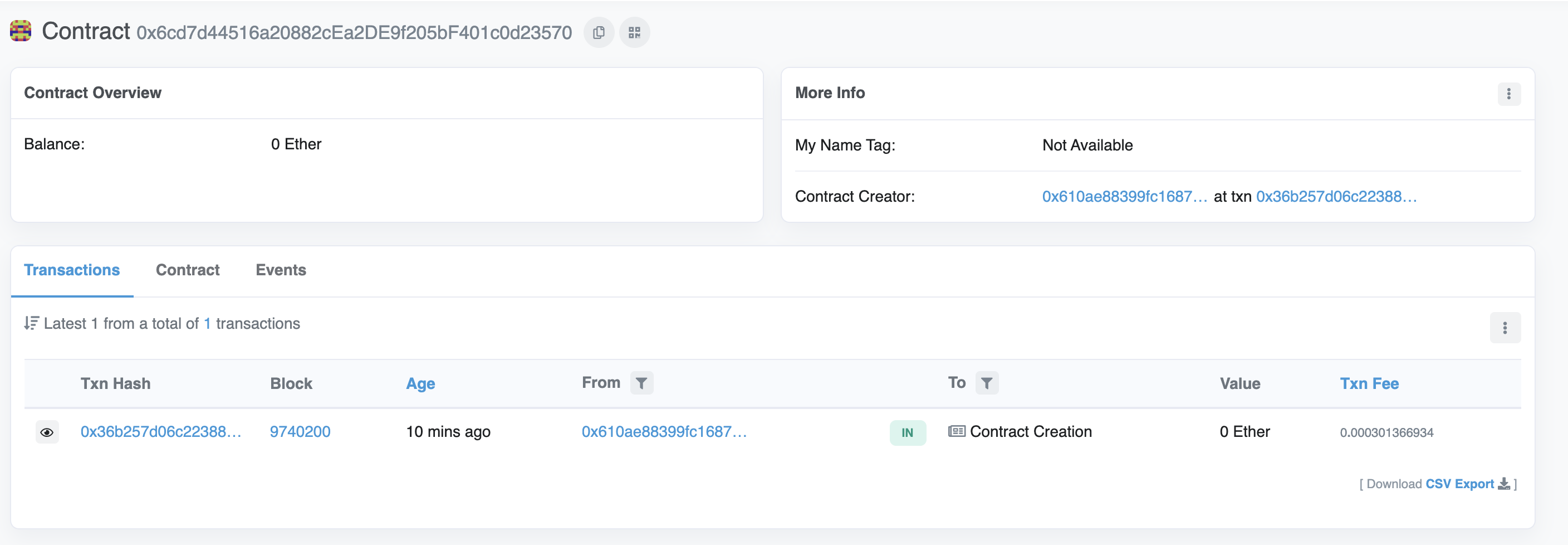
The From address should match your MetaMask account address and the To address will say “Contract Creation” but if we click into the transaction we’ll see our contract address in the To field:
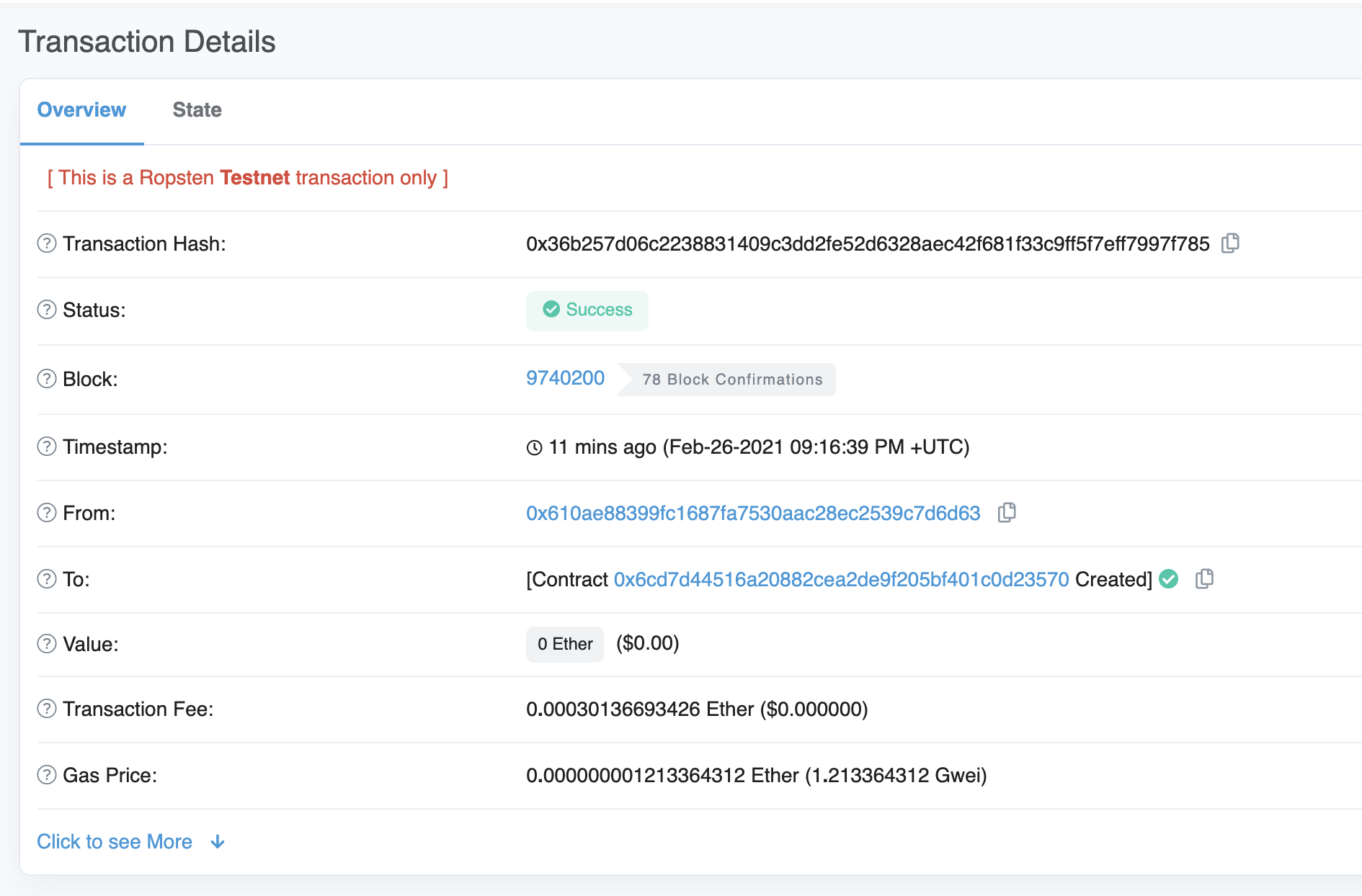
Congrats! You just deployed a smart contract to the Ethereum chain 🎉
To understand what’s going on under the hood, you can look at the requests your "Hello World" app received in your Alchemy dashboard (opens in a new tab).
There you’ll see a handful of JSON-RPC calls that Hardhat/Ethers made under the hood for us when we called the .deploy() function. Two important ones to call out here are eth_sendRawTransaction, which is the request to actually write our contract onto the Sepolia chain, and eth_getTransactionByHash which is a request to read information about our transaction given the hash (a typical pattern when sending transactions). To learn more about sending transactions, check out the transactions documentation.
That’s all for this tutorial. Next, you can build a user interface for your contract.