使用 InfluxDB 和 Grafana 監控 Geth
本教學將協助你為 Geth 節點設定監控,讓你更了解其效能並找出潛在問題。
先決條件
- 你應該已經在執行一個 Geth 實例。
- 大多數步驟和範例都是針對 Linux 環境,具備基本的終端機知識會很有幫助。
- 觀看這部關於 Geth 指標套件的概覽影片:Péter Szilágyi 的監控以太坊基礎設施 (在新分頁開啟)。
監控堆疊
以太坊客戶端會收集大量資料,這些資料可以透過時間序列資料庫的形式讀取。為了讓監控更輕鬆,你可以將這些資料輸入到資料視覺化軟體中。有許多可用的選項:
- Prometheus (在新分頁開啟) (拉取模型)
- InfluxDB (在新分頁開啟) (推送模型)
- Telegraf (在新分頁開啟)
- Grafana (在新分頁開啟)
- Datadog (在新分頁開啟)
- Chronograf (在新分頁開啟)
還有 Geth Prometheus Exporter (在新分頁開啟),這是一個預先設定好 InfluxDB 和 Grafana 的選項。
在本教學中,我們將設定你的 Geth 客戶端將資料推送到 InfluxDB 以建立資料庫,並使用 Grafana 建立資料的圖表視覺化。手動執行將有助於你更了解整個過程、進行修改,並在不同的環境中部署。
設定 InfluxDB
首先,讓我們下載並安裝 InfluxDB。可以在 Influxdata 發布頁面 (在新分頁開啟)找到各種下載選項。選擇適合你環境的選項。 你也可以從儲存庫 (在新分頁開啟)安裝。例如在基於 Debian 的發行版中:
curl -tlsv1.3 --proto =https -sL https://repos.influxdata.com/influxdb.key | sudo apt-key add
source /etc/lsb-release
echo "deb https://repos.influxdata.com/${DISTRIB_ID,,} ${DISTRIB_CODENAME} stable" | sudo tee /etc/apt/sources.list.d/influxdb.list
sudo apt update
sudo apt install influxdb -y
sudo systemctl enable influxdb
sudo systemctl start influxdb
sudo apt install influxdb-client
成功安裝 InfluxDB 後,請確保它在背景執行。預設情況下,可以透過 localhost:8086 存取。
在使用 influx 客戶端之前,你必須建立一個具有管理員權限的新使用者。此使用者將用於高階管理、建立資料庫和使用者。
curl -XPOST "http://localhost:8086/query" --data-urlencode "q=CREATE USER username WITH PASSWORD 'password' WITH ALL PRIVILEGES"
現在你可以使用 influx 客戶端以該使用者身分進入 InfluxDB shell (在新分頁開啟)。
influx -username 'username' -password 'password'
在 InfluxDB shell 中直接與其通訊,你可以為 Geth 指標建立資料庫和使用者。
create database geth
create user geth with password choosepassword
使用以下指令驗證建立的項目:
show databases
show users
離開 InfluxDB shell。
exit
InfluxDB 正在執行並已設定為儲存來自 Geth 的指標。
準備 Geth
設定好資料庫後,我們需要在 Geth 中啟用指標收集。請注意 geth --help 中的 METRICS AND STATS OPTIONS。那裡可以找到多個選項,在這種情況下,我們希望 Geth 將資料推送到 InfluxDB。
基本設定指定了可存取 InfluxDB 的端點以及資料庫的驗證資訊。
geth --metrics --metrics.influxdb --metrics.influxdb.endpoint "http://0.0.0.0:8086" --metrics.influxdb.username "geth" --metrics.influxdb.password "chosenpassword"
這些旗標可以附加到啟動客戶端的指令中,或儲存到設定檔中。
你可以驗證 Geth 是否成功推送資料,例如透過列出資料庫中的指標。在 InfluxDB shell 中:
use geth
show measurements
設定 Grafana
下一步是安裝 Grafana,它將以圖形方式解釋資料。請按照 Grafana 文件中針對你環境的安裝程序進行操作。除非你有其他需求,否則請確保安裝 OSS 版本。 使用儲存庫的 Debian 發行版安裝步驟範例:
curl -tlsv1.3 --proto =https -sL https://packages.grafana.com/gpg.key | sudo apt-key add -
echo "deb https://packages.grafana.com/oss/deb stable main" | sudo tee -a /etc/apt/sources.list.d/grafana.list
sudo apt update
sudo apt install grafana
sudo systemctl enable grafana-server
sudo systemctl start grafana-server
當你執行 Grafana 時,應該可以透過 localhost:3000 存取。
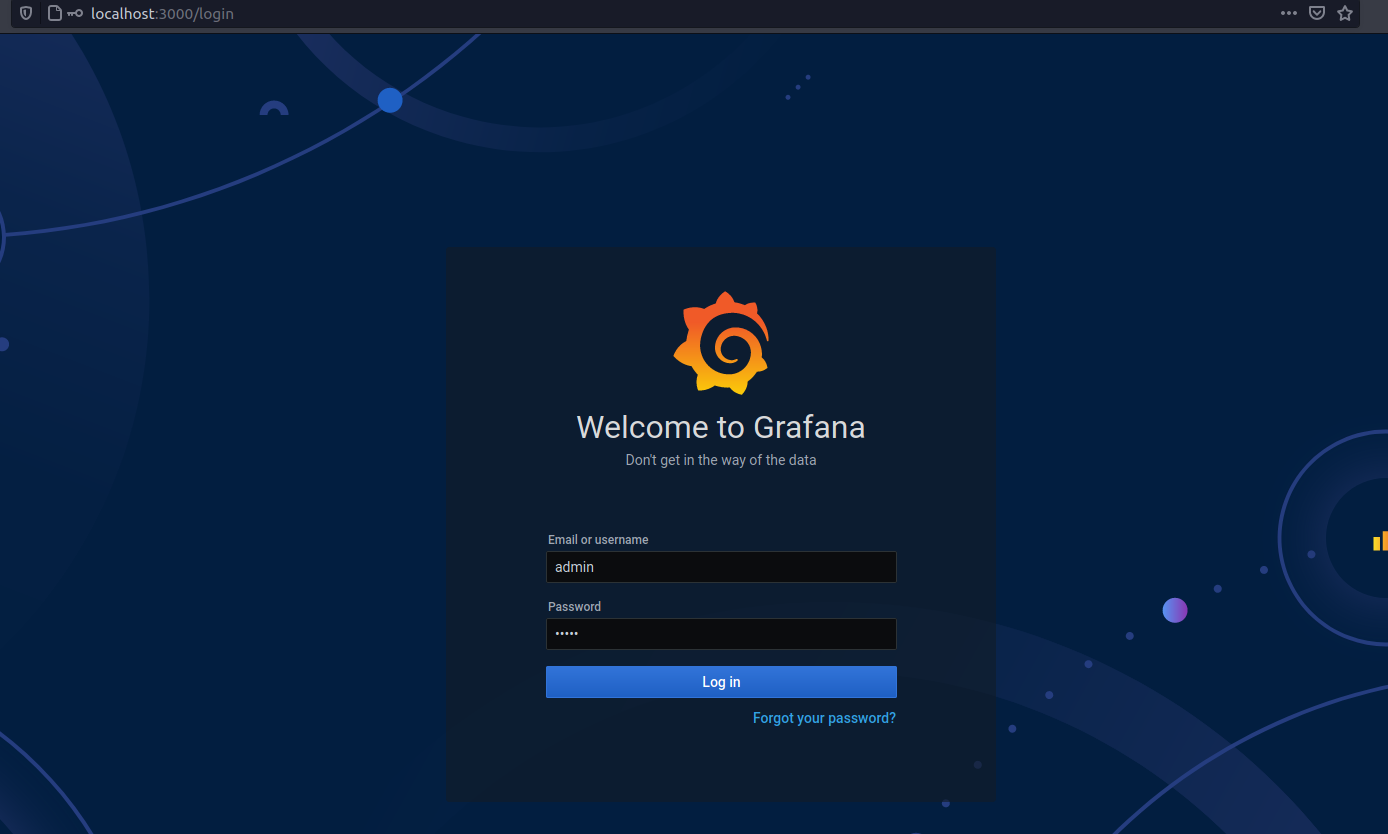
使用你偏好的瀏覽器存取此路徑,然後使用預設憑證登入(使用者:admin,密碼:admin)。出現提示時,變更預設密碼並儲存。
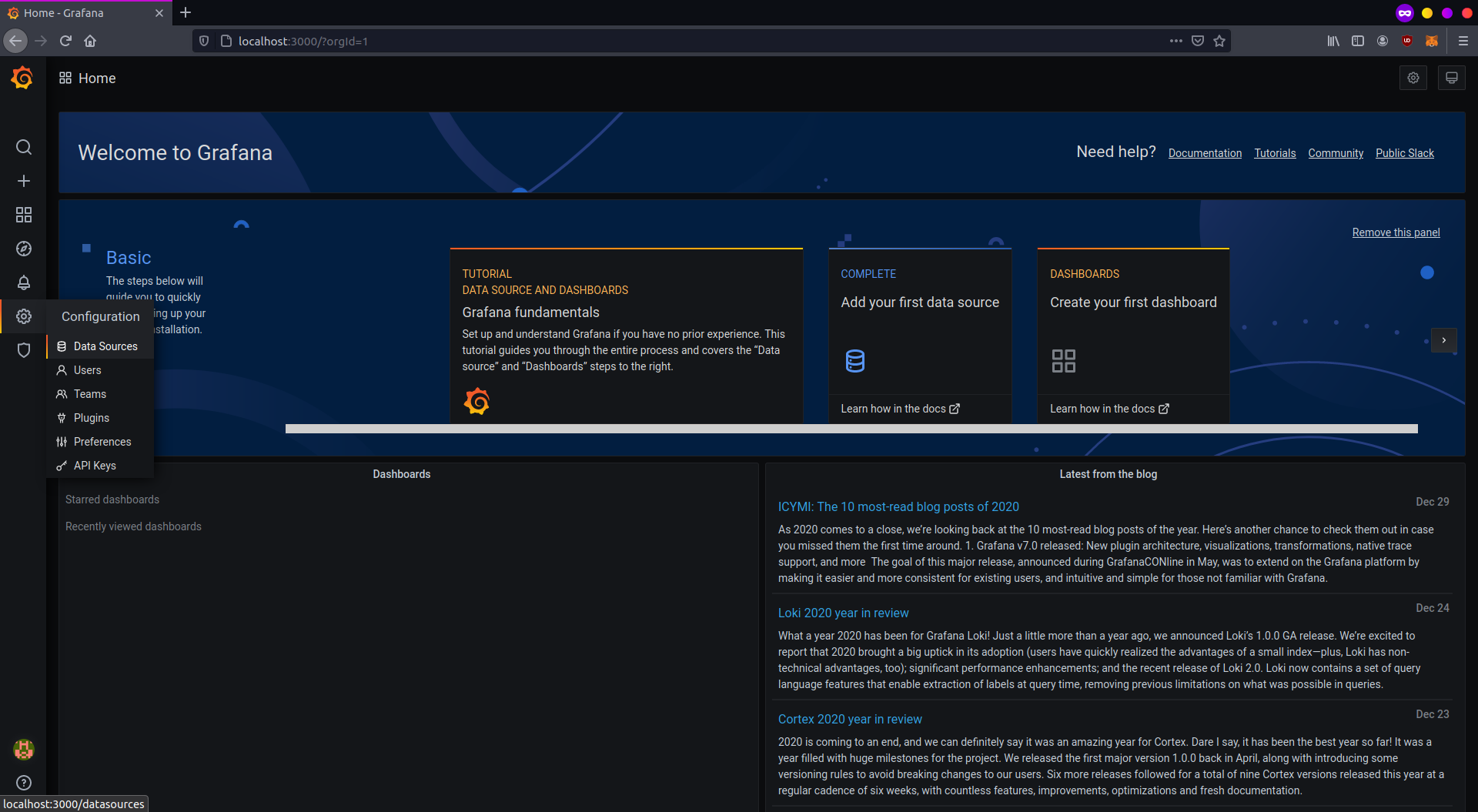
你將被重新導向到 Grafana 首頁。首先,設定你的來源資料。點擊左側欄中的設定圖示,然後選擇「Data sources」(資料來源)。
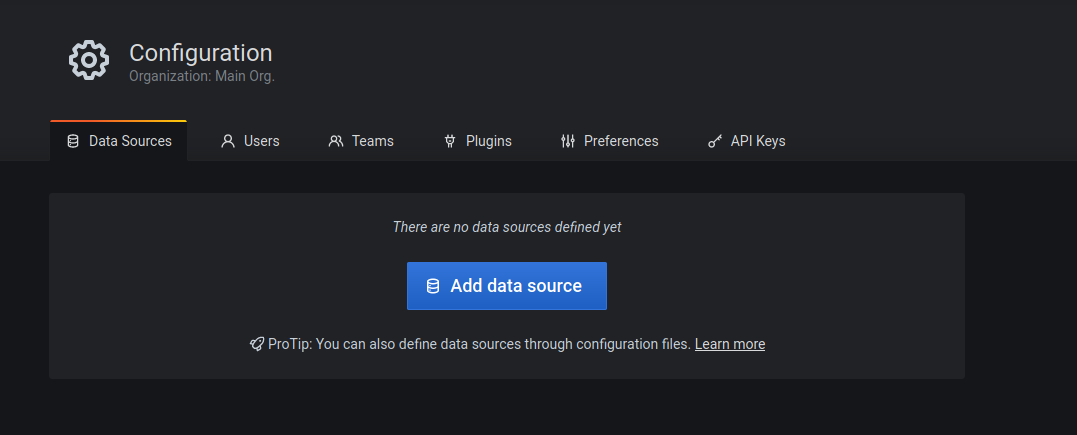
目前尚未建立任何資料來源,點擊「Add data source」(新增資料來源)來定義一個。
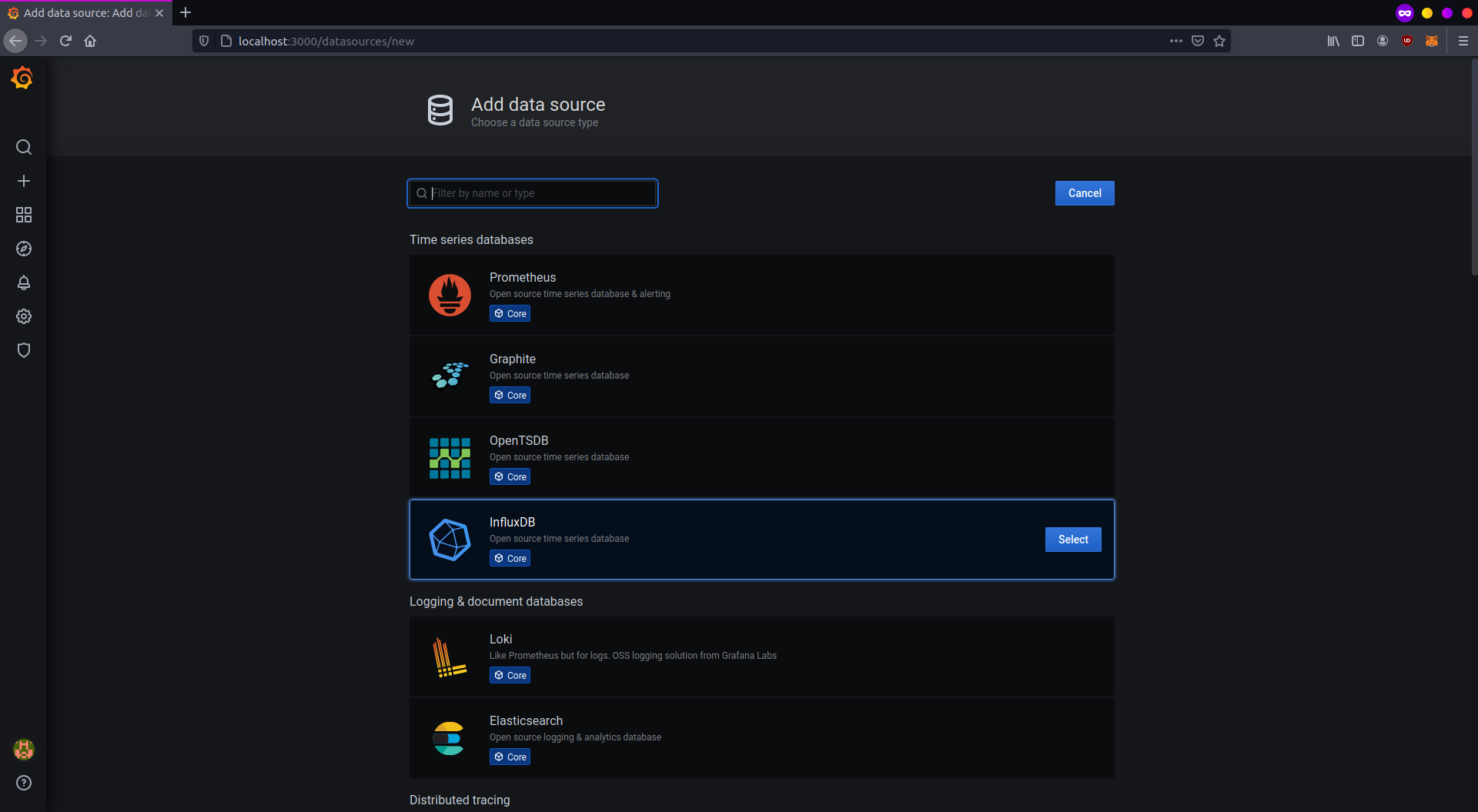
對於此設定,選擇「InfluxDB」並繼續。
如果你在同一台機器上執行工具,資料來源設定非常簡單。你需要設定 InfluxDB 地址和存取資料庫的詳細資訊。請參考下圖。

如果一切完成且可以存取 InfluxDB,點擊「Save and test」(儲存並測試),然後等待確認訊息彈出。
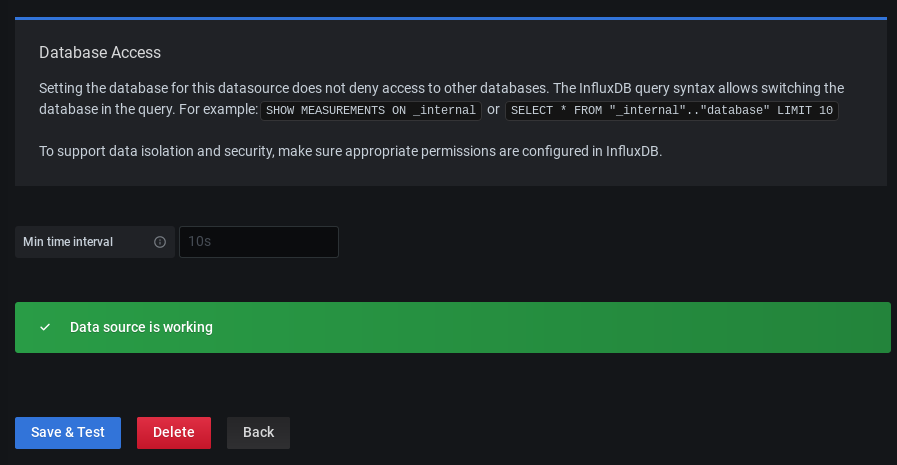
Grafana 現在已設定為從 InfluxDB 讀取資料。現在你需要建立一個儀表板來解釋並顯示它。儀表板屬性編碼在 JSON 檔案中,任何人都可以建立並輕鬆匯入。在左側欄中,點擊「Create and Import」(建立並匯入)。
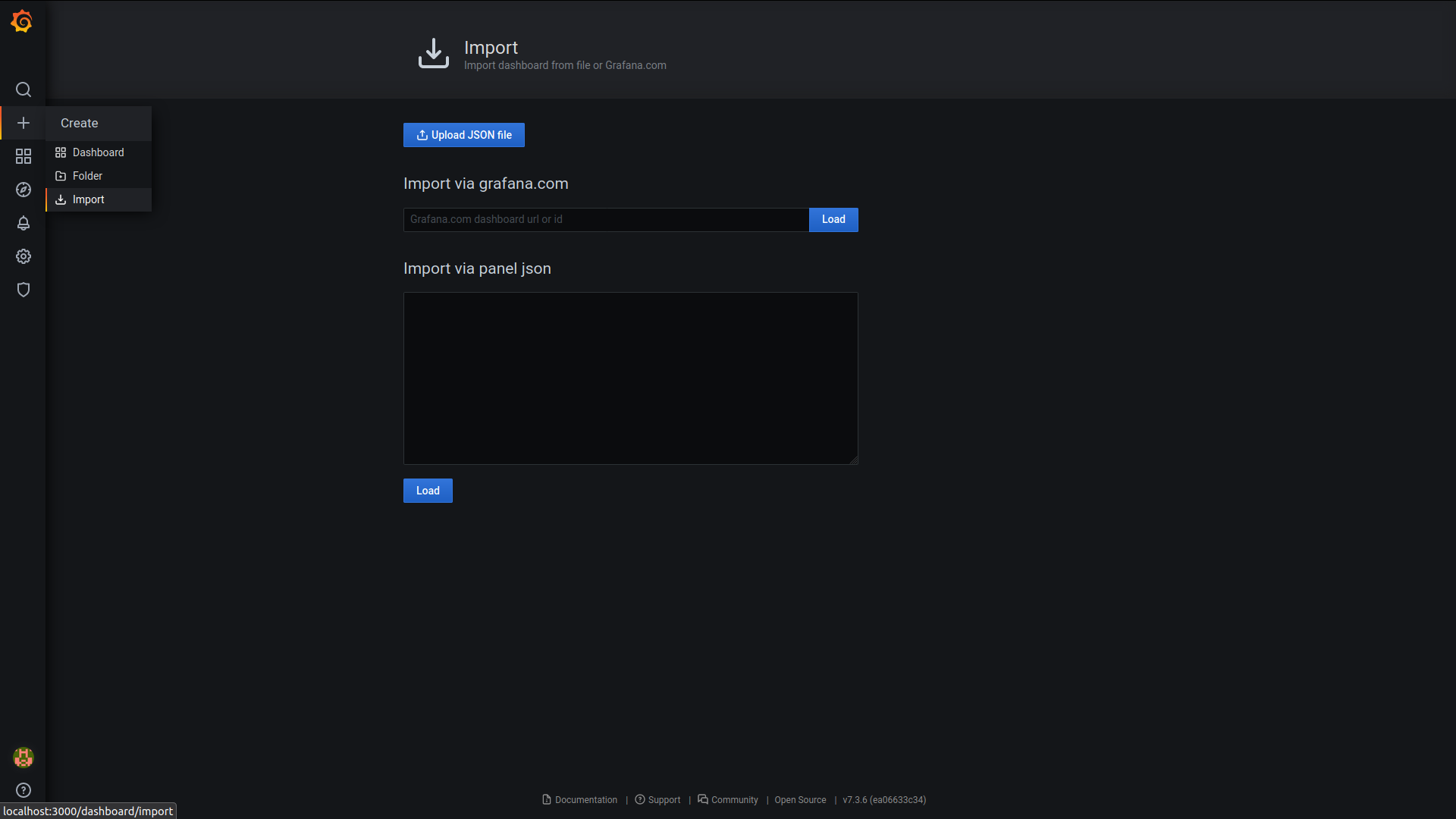
對於 Geth 監控儀表板,複製這個儀表板 (在新分頁開啟)的 ID,並將其貼到 Grafana 的「Import page」(匯入頁面)中。儲存儀表板後,它應該看起來像這樣:
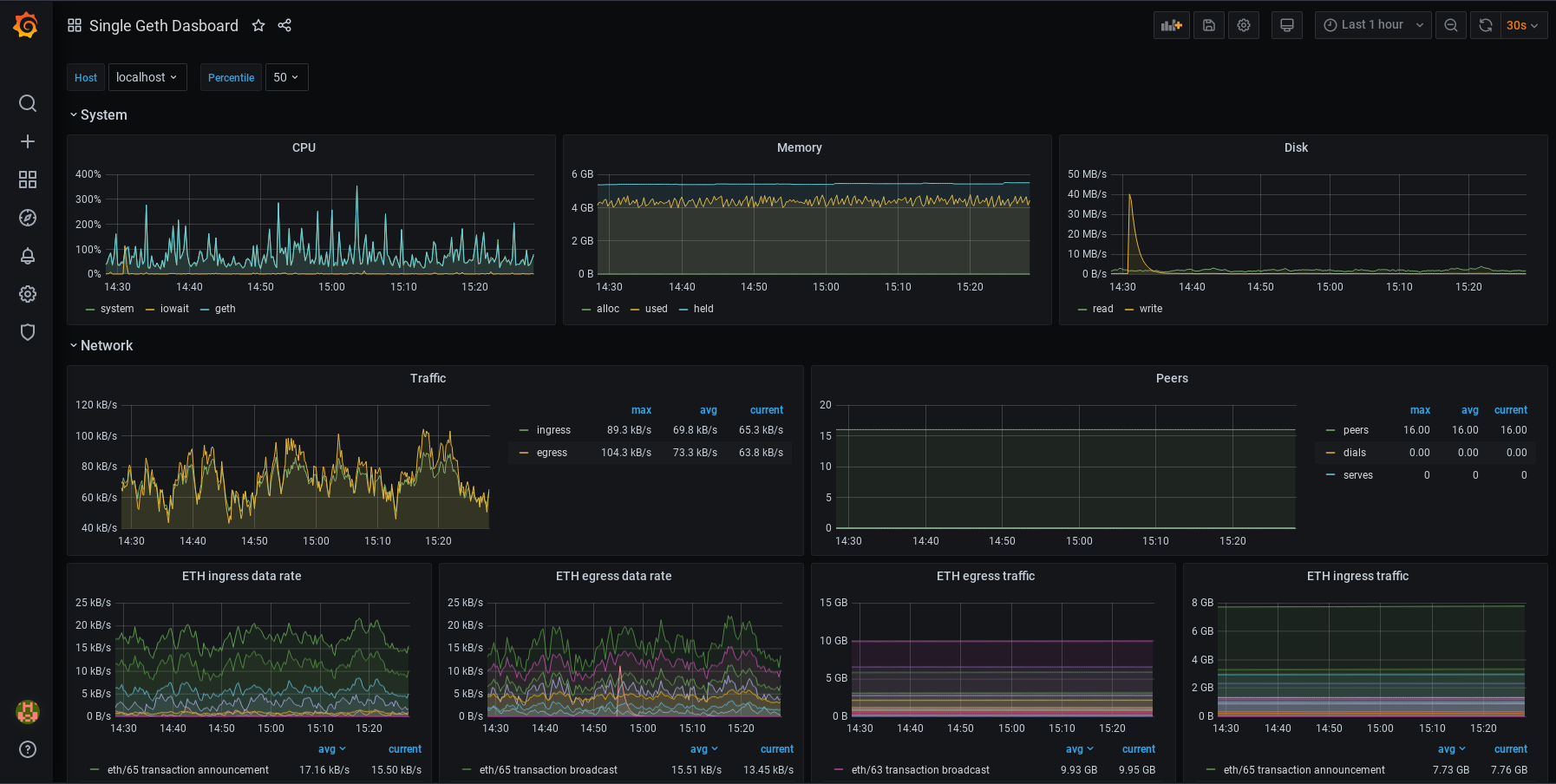
你可以修改你的儀表板。每個面板都可以編輯、移動、移除或新增。你可以變更你的設定。這完全取決於你!要了解更多關於儀表板如何運作的資訊,請參考 Grafana 的文件 (在新分頁開啟)。 你可能也對警報 (在新分頁開啟)感興趣。這讓你可以設定當指標達到特定數值時的警報通知。支援多種通訊管道。